
QC Read & Understood gives you the opportunity to synchronize your user groups and add new group members to your pages with the click of a button.
Synchronize your user groups on Page level
When adding new users to a group, you can synchronize your tables and add them to pages by simply visiting the QC R&U Page Overview report page, going over to the “Groups” tab, and clicking on the “Sync Groups” button.
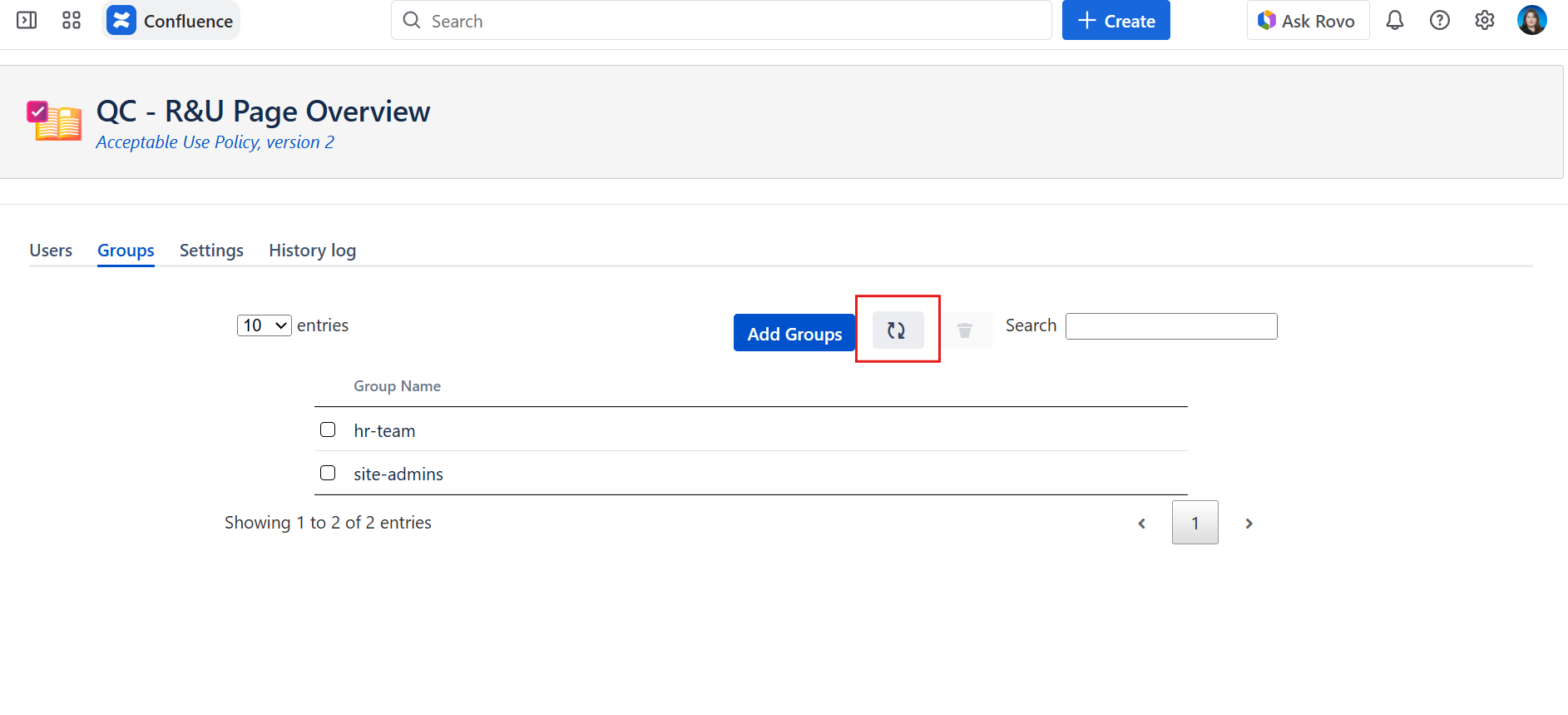
In case you remove a user from a group, they won’t be deleted from the QC R&U Page Overview reports. The feature only adds users to the pages; it doesn’t remove them.
If you want to exclude a group from syncing, you can remove it from the QC R&U Page Overview without removing the users from the page.
Synchronize your user groups on Space level
You can also sync your user groups on Space level and save a lot of time of going through each page on your space and syncing your groups.
To do this, follow the steps below:
-
Go to Space settings and from the “App links” menu select the “QC Read & Understood” option
-
Navigate to the “Settings” tab and scroll to the “Synchronization” section
-
Click the “Sync” button
-
Optionally, you can choose to sync your groups and notify the newly assigned users of their pending R&Us.
