
By enabling the “Read Time Lock,” the “Read and Understood” button within the QC Signature Box remains disabled until the estimated read time has elapsed.
How to Enable the Read Time Lock Feature
-
Go to your Confluence space and click on Space Settings.
-
From the App Links panel, select QC Read & Understood.
-
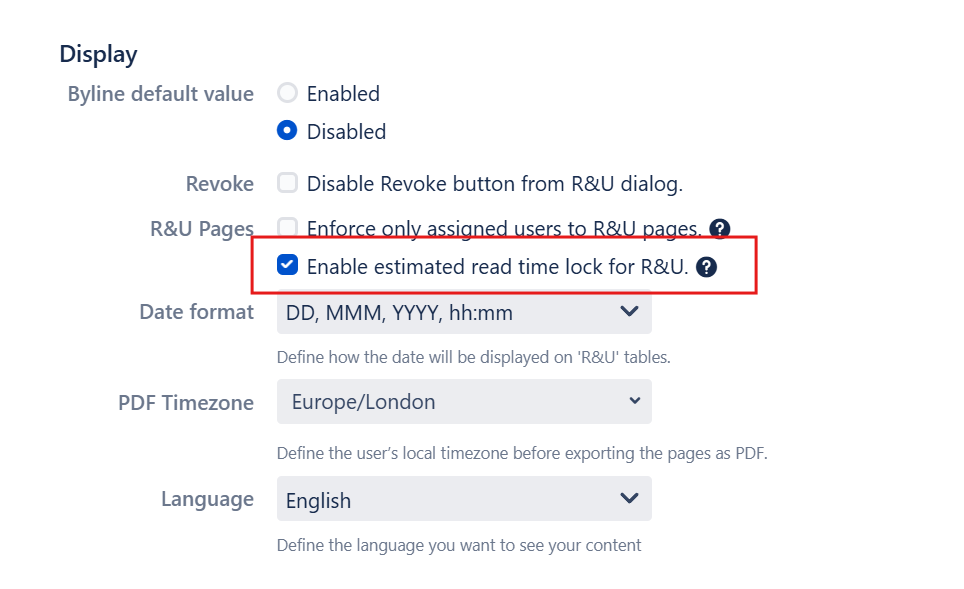
Navigate to the Settings tab and in the Display section, locate the R&U Pages section.
-
Enable the Read Time Lock feature by clicking the checkbox labeled “Enable estimated read time lock for R&U.”
-
Click Update to apply and save the changes.
How It Works
-
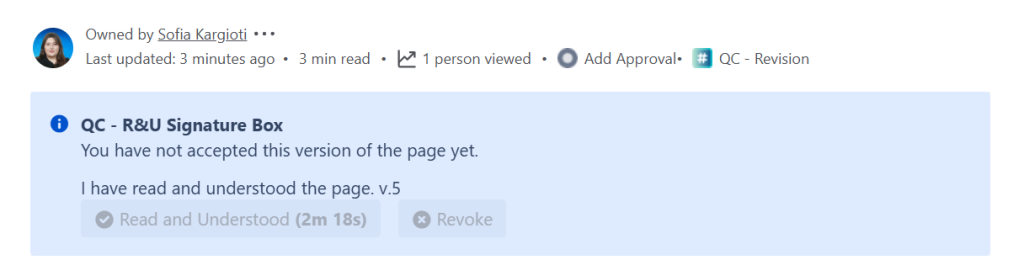
Once the feature is active, the “Read and Understood” button in the QC Signature Box will be disabled initially.
-
A timer will display, indicating the remaining time until the Confluence estimated read time has passed.
-
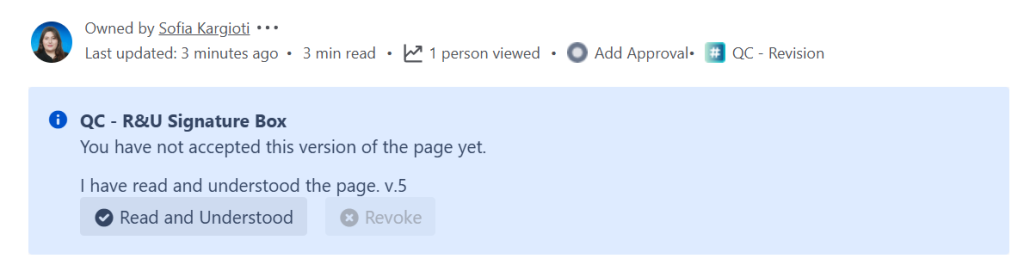
After the designated read time, the “Read and Understood” button becomes enabled, allowing users to R&U the page.
Important Considerations
Important Consideration 1:
QC Signature Box vs. Byline Dialog: This feature applies exclusively to the QC Signature Box macro. If the byline dialog at the top of the page is active, users can R&U pages without waiting for the read time to elapse.
Important Consideration 2:
Disabling the Byline Dialog: To ensure users can only perform R&Us after the read time has passed, disable the byline dialog:
-
Navigate to QC Read & Understood settings.
-
In the Display section, adjust the Byline default value accordingly.