Site Level
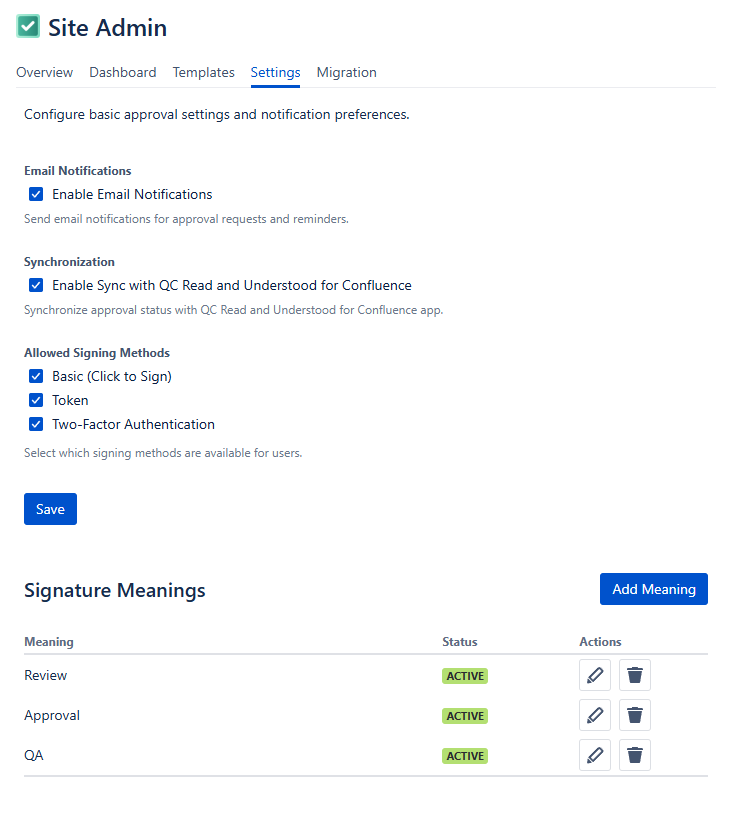
As a site admin, you are responsible for configuring some basic settings for the QC Approvals app. To access the Site Admin settings:
-
Click on the “Apps” menu in the left sidebar
-
Select the “Site Admin” option
-
Navigate to the “Settings” tab.
Here, you can enable email notifications, configure the allowed signing methods that will be used for the approvals, manage signature meanings, and even allow the app to be synchronized with the QC Read & Understood for Confluence Cloud.
User Level
As a simple user, you are responsible for configuring your personal settings. To do this:
-
Click on the “Apps” menu in the left sidebar
-
Select the “My Approvals” option
-
Navigate to the “Settings” tab.
Here, you can define your Role and create a Token or set up two-factor authentication.
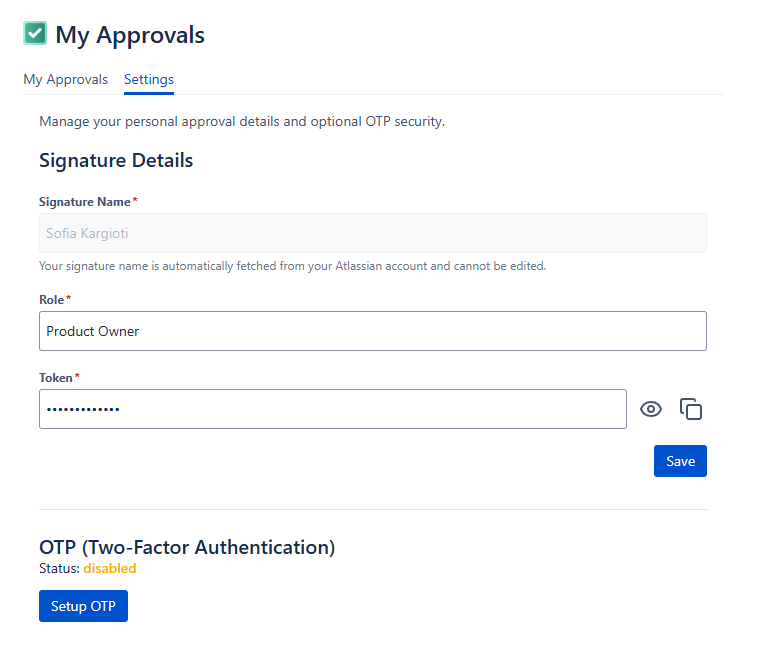
Role: This is a text field that can be edited at any point. Please note that what you type in the “Role” field will be displayed in your signature details once you’ve signed a page version.

Token: Create a Token to use when signing a page version. This is a text field that can be edited at any point, and there are no restrictions as to what a token could look like.

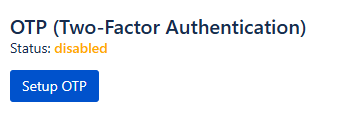
OTP (Two-Factor Authentication): Some approval templates may require you to use OTP while signing a version. To enable and set up two-factor authentication, simply click the “Setup OTP” button and follow the steps as seen on your screen.