QC Read & Understood can send email notifications in the following cases:
1. When assigning users to R&U a specific page
The steps to send email notifications about new R&U approvals are easy.
-
Go to QC R&U Page Overview
-
Add users
-
Select the “Notify users via email” checkbox
-
Click Add, and
-
Done! Now all newly added users have received an email notification saying that you’ve assigned them to R&U the page.

2. When there is a new page version to R&U
If you want to let people know there is a new version of a page they need to R&U follow the next steps:
-
Go to QC R&U Page Overview
-
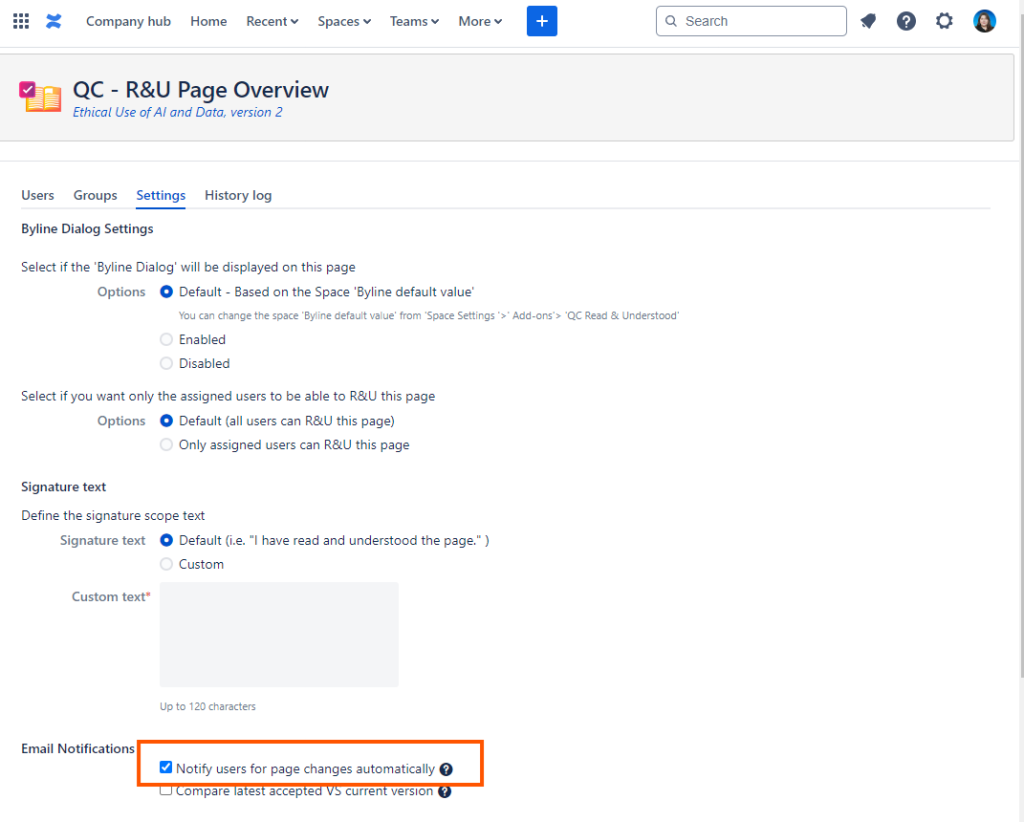
Go to the Settings tab
-
Select the “Notify users for page changes” checkbox
-
Click Update, and
-
Done! Now every time a new version of the page is published, assigned users will get notified.
3. Manual page and space notifications
You can remind all the assigned users who haven’t approved a page yet by clicking the “Send Reminder” button on the QC R&U Page Overview.
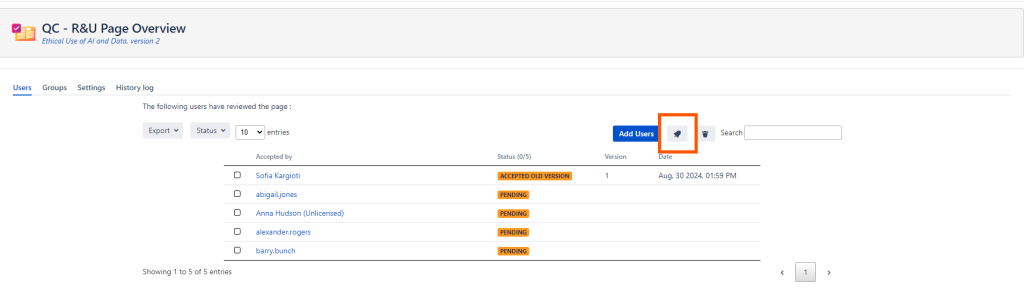
The feature will automatically choose the users that are not in the “Approved” status. The QC R&U statuses that will get the reminders are:
-
Revoked,
-
Approved older version,
-
Pending.
If you do not want a user to get the reminder but you want them on the QC R& Page Overview table, simply remove them from the pop-up that opens up when you click the “Send Reminder” button.
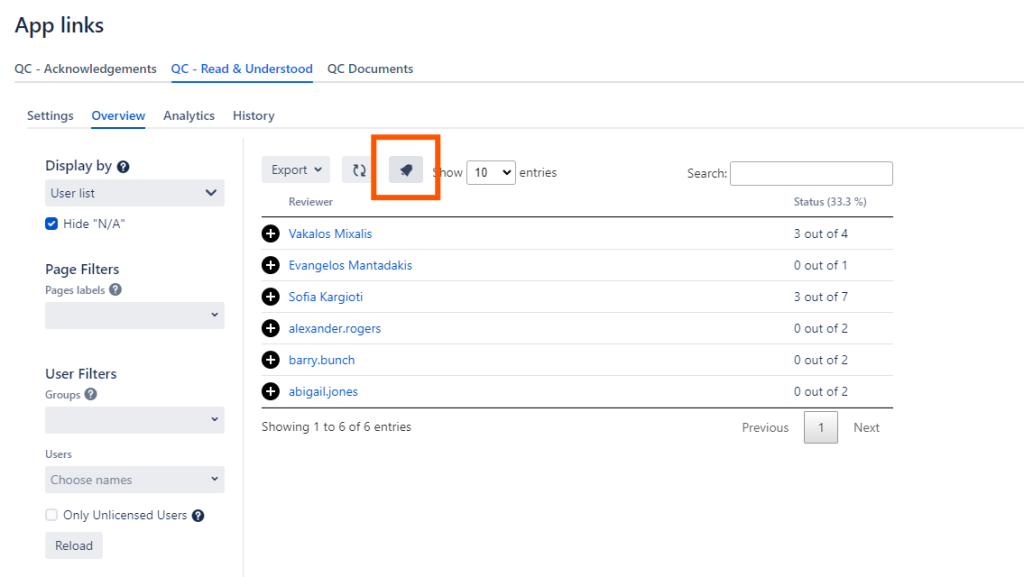
Accessing many pages and clicking the notify button for each one of them can be time-consuming so you can instead use the “Notify Users” on the QC R&U Space Overview table (Space settings → App links → QC Read & Understood → Overview).
4. Notifications when syncing user groups
User groups can be synced automatically every 24 hours if selected, or manually by clicking the “Sync” button on page or space level. You can find more about user group synchronization here.
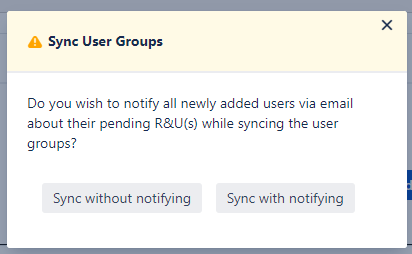
When clicking the “Sync” button, a pop-up window will show up asking if you want to notify the users after the synchronization or not. Feel free to select the best option for you.
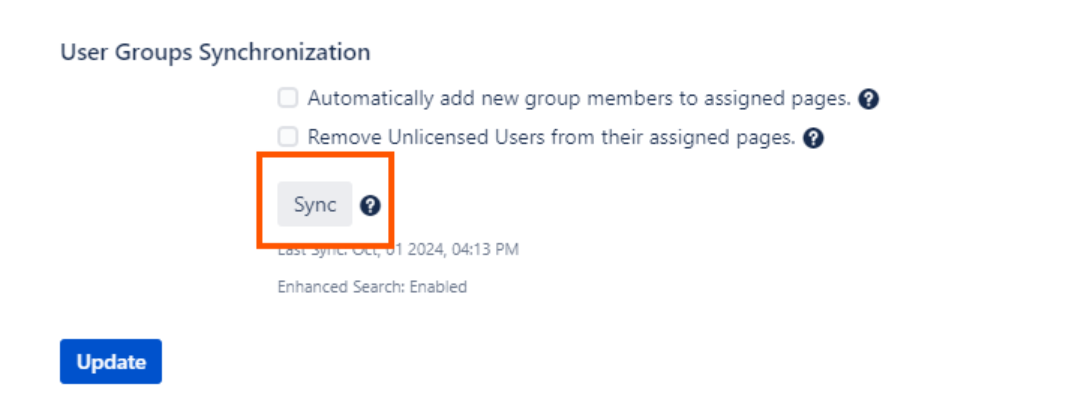
a. Sync users on space level
Go to Space settings → App links → QC Read & Understood → Settings → Scroll to the “User Groups Synchronization” section → Click “Sync”.

b. Sync users on page level
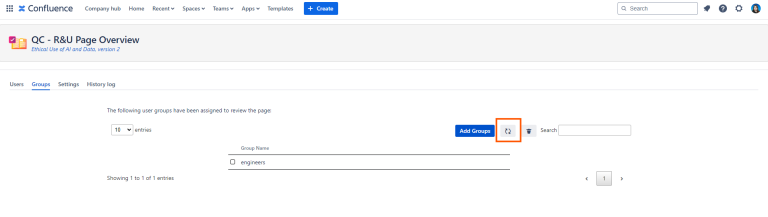
Go to QC R&U Page Overview → Groups → Click “Sync Groups”.
5. Automated Space Reminders
-
Go to Space settings and from the App links menu select QC Read & Understood.
-
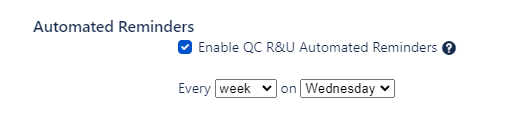
Navigate to the Settings tab and find the Automated Reminders section.
-
Enable the feature by selecting the “Enable QC R&U Automated Reminders” checkbox.
-
Choose how often you want the reminders to be sent. You can set it to send reminders every day, every week on a certain day, every month on a certain date, or every year on a certain date.
-
Once you’ve set your preferred frequency, click the Update button to save your changes.
6. Manual Acknowledgement Notifications
Manual notifications can be sent in two ways:
a. When Publishing an Acknowledgement
-
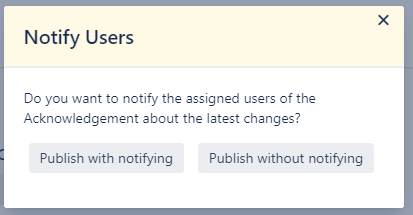
When you publish an Acknowledgement, a pop-up window will appear.
-
This window allows you to choose whether to:
-
Publish and Notify Assigned Users: Notifies assigned users about the latest changes.
-
Publish Without Notification: Updates the Acknowledgement without sending a notification.
-
b. Using the ACK Report Tab
-
Navigate to the Acknowledgement Overview tab (Space settings > App links > QC Acknowledgements) and select an Acknowledgement.
-
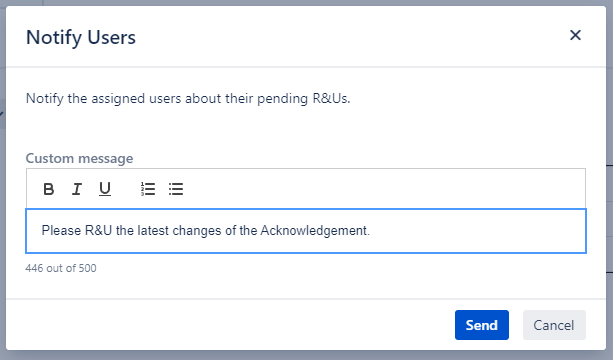
Go to “Report” and click the “Notify Users” button.
-
Write a custom message tailored to the update or reminder.
-
Send the custom notification to all assigned users for that Acknowledgement.
7. Automated Acknowledgement Reminders
a. Automated notifications for new page versions NEW
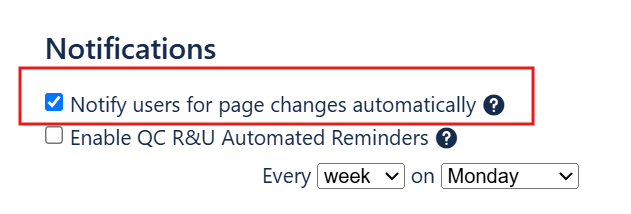
To send automated notifications every time there is a new version of a page included in an Acknowledgement, follow these steps:
-
Create or Edit an Acknowledgement.
-
Add Users and Pages to the Acknowledgement.
-
Check the “Notify users for page changes automatically” box.
b. Automated reminders on a specific interval
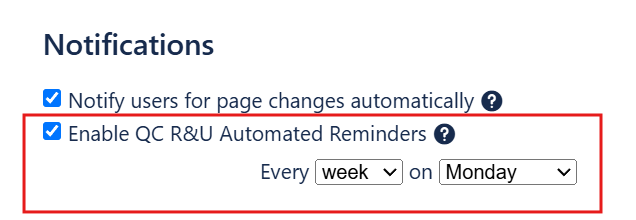
To configure automated reminders for an Acknowledgement, follow the steps below:
-
Create or Edit an Acknowledgement.
-
Add Users and Pages to the Acknowledgement.
-
Set the Frequency of the automated reminders (e.g., daily, weekly on a certain day, etc).
Disable R&U Email Notifications (for Site Admins)
Site admins can disable R&U Email Notifications on site level by following the steps below:
-
Go to “Confluence administration” (gear icon at the top of the page) and from the “Configuration” menu select “QC R&U Site Admin“
-
In the “Notifications” section, uncheck the box labeled “Enable Email Notifications”
-
Your changes are saved automatically!
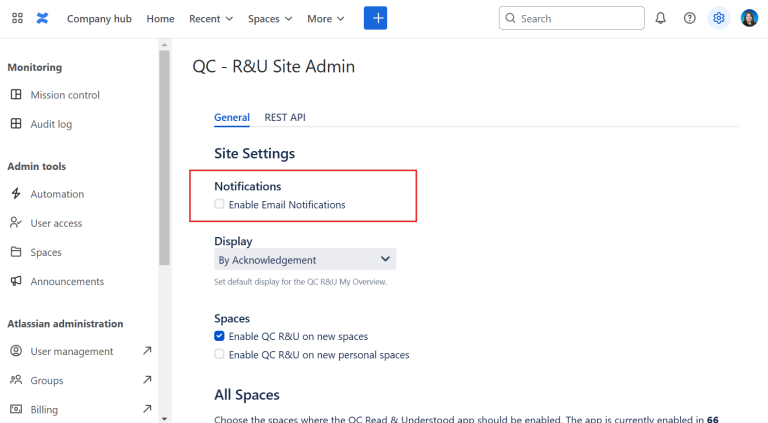
Once email notifications are disabled, the app won’t send any emails to the assigned users.
Disable R&U Email Notifications (for Individual Users)
From “Personal settings”
As an individual user, you can choose to not receive any email notifications from the app by following these steps:
-
Click on your profile icon (at the top of the page) and go to “Personal settings“
-
Select the “QC R&U Email Notifications” option
-
Uncheck the box labeled “Receive QC R&U Email Notifications” and click “Update“.
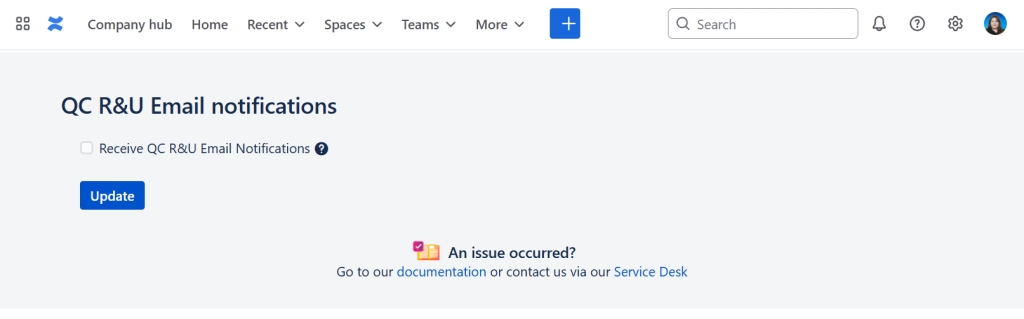
Once your settings are saved, you will stop receiving email notifications.
From Email Notification
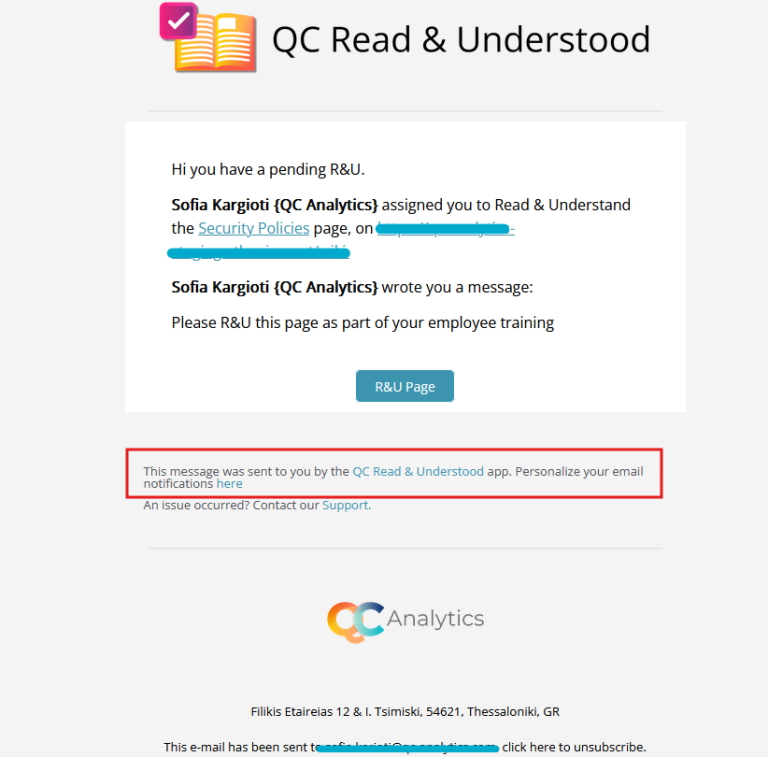
Individual users can also disable the notifications by clicking the “Personalize your email notifications” link at the bottom of the email notifications.
This link takes the user directly to their personal QC R&U Email Notification settings, where they need to follow the steps from above.
Important Notice!
Please always keep in mind that disabling personal R&U Email Notifications may affect your team’s workflows and requirements.
Before making this change, we advise you to always consult with your manager first.
Customize your R&U Email Notifications
Now you can personalize your R&U Email Notifications to perfectly align with your brand for only €50/year.
Here is how it works:
-
Visit our online store and subscribe to the annual subscription to Brand Customization for QC R&U Email Notifications
-
Once you subscribe, we will get back to you to gather all the necessary information (your domain, your company’s logo, color scheme, etc). A Service Desk ticket will be created for your request.
-
After gathering the needed information, we will start with authenticating your domain. This is a crucial step for the customized templates as it ensures that all R&U Email Notifications are delivered correctly and without any issues.
-
When the domain is authenticated, we will start working on the visual part of the notifications. We will use the logos and colors that you send us.
-
We will let you know when the custom template is complete so you can test it and give us your feedback.
-
Once a year, you will be billed with €50. The fee covers maintenance costs and ensures our commitment to providing you with the necessary support and custom templates and your commitment that you will use those templates.