
If you want to know how to export your documents with Scroll PDF without missing the assigned QC Revision Value, watch this video or follow the steps below.
-
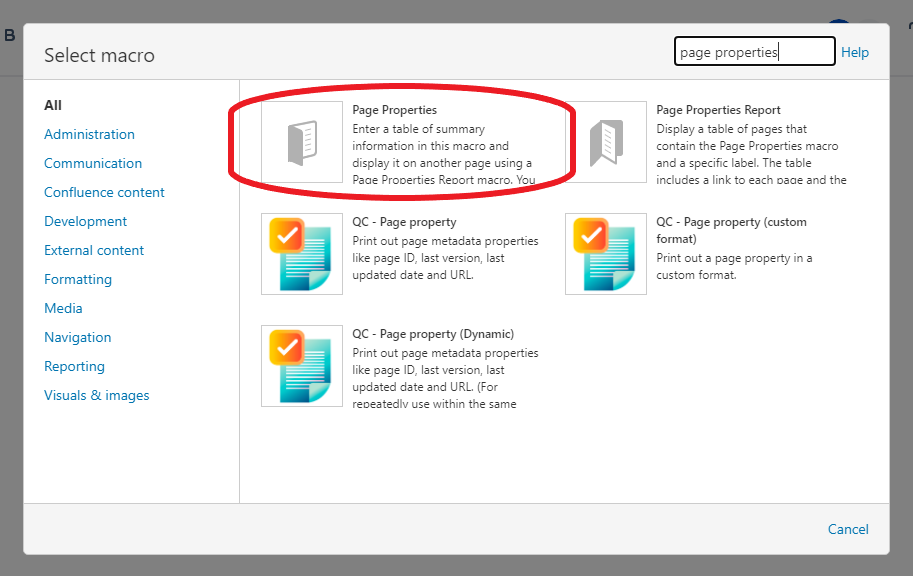
First add a Page Properties macro.
-
On the Page Properties, add a Table with two columns. In the first column, add the title “Revision” and on the second insert the QC Revision Value macro.

-
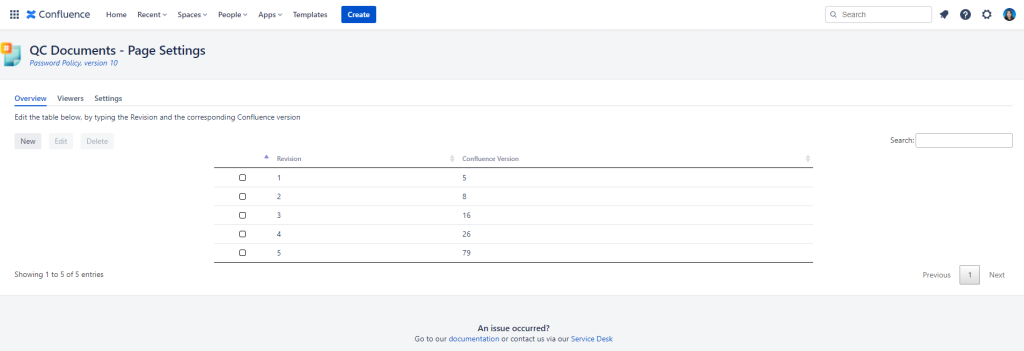
After you publish your page go to QC Page Revision Overview and assign your QC Revision Values with the corresponding Confluence version numbers.
-
From the Space Settings click on Add-ons > Scroll PDF Exporter and create a new template.
-
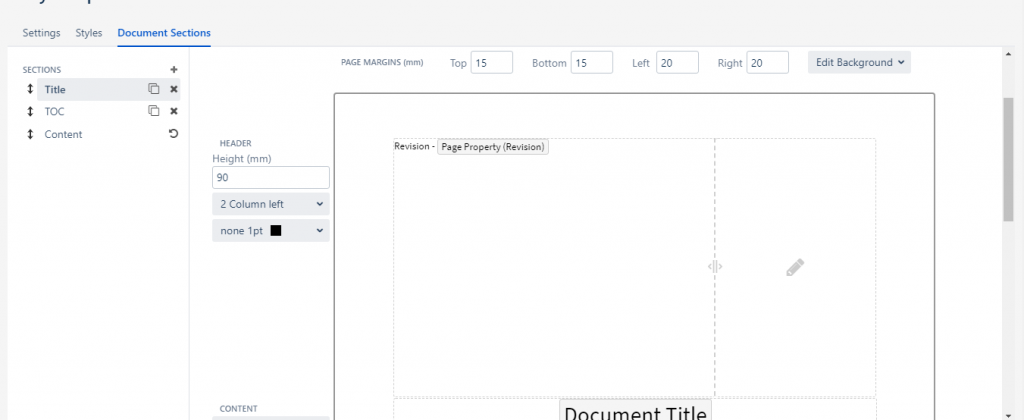
Go to Document Sections and insert a Page Property macro on every section’s header you want to show the QC Revision Value. For instance, go to Title and on the header type “Revision”, then click on the + icon and type page property, select and insert the macro.
-
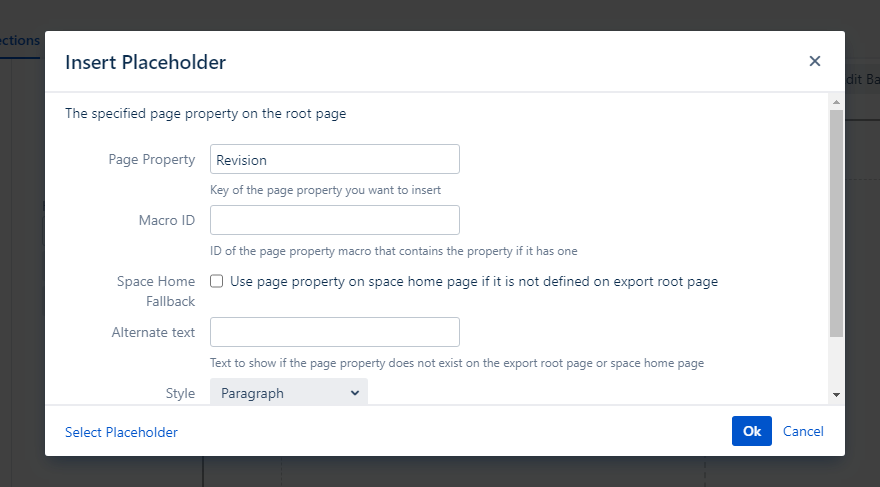
On the “Insert Placeholder” window type “Revision” as the key of the page property you want to insert and click Save.
-
From the three dots on the upper right corner of the Confluence page select Export with Scroll PDF Exporter and choose the template you just created.
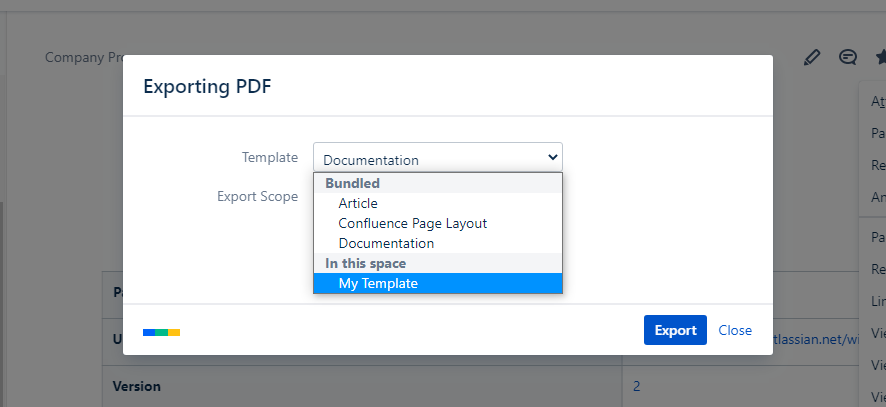
-
Export and you are done!
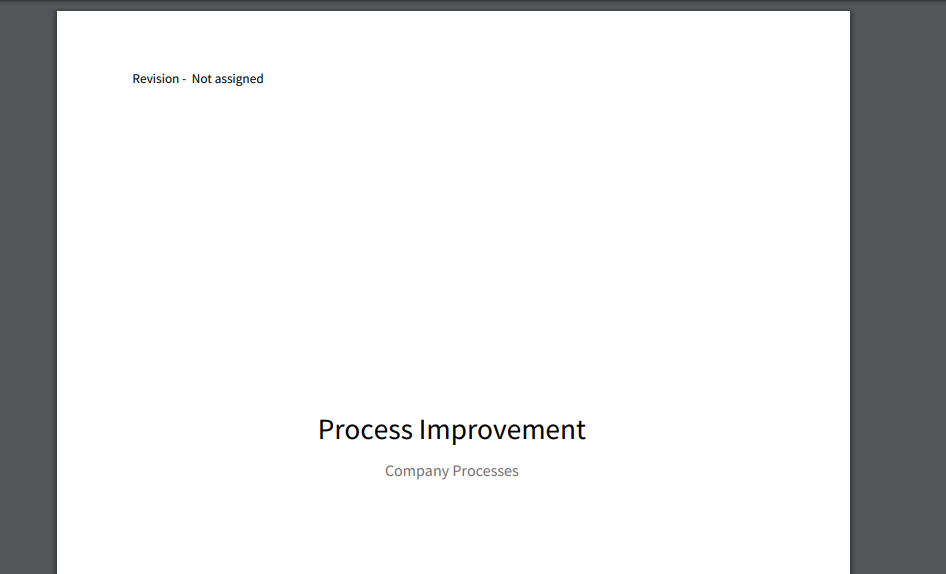
The “Not assigned” means that the current Confluence version is not assigned to a revision number