
Assigning individual users to the QC R&U Page Overview
To assign simple users to the pages they need to R&U, follow the steps below:
-
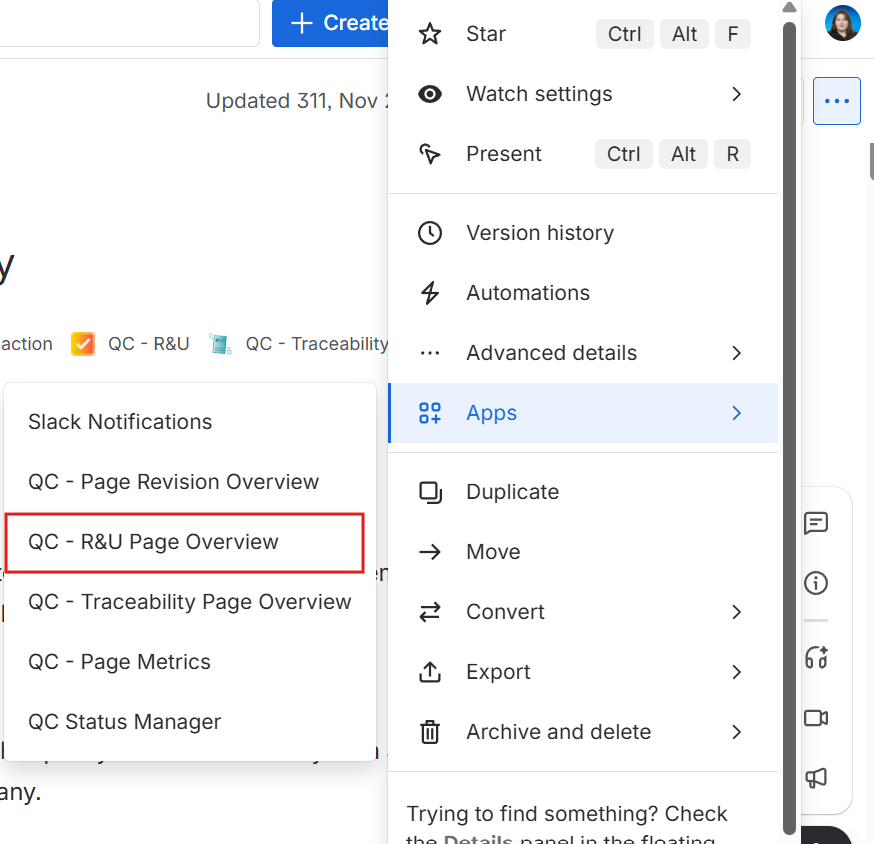
Select the Confluence page you want and click “More actions” (three dots in the upper-right corner)
-
From the “Apps” menu, select the “QC R&U Page Overview” option
-
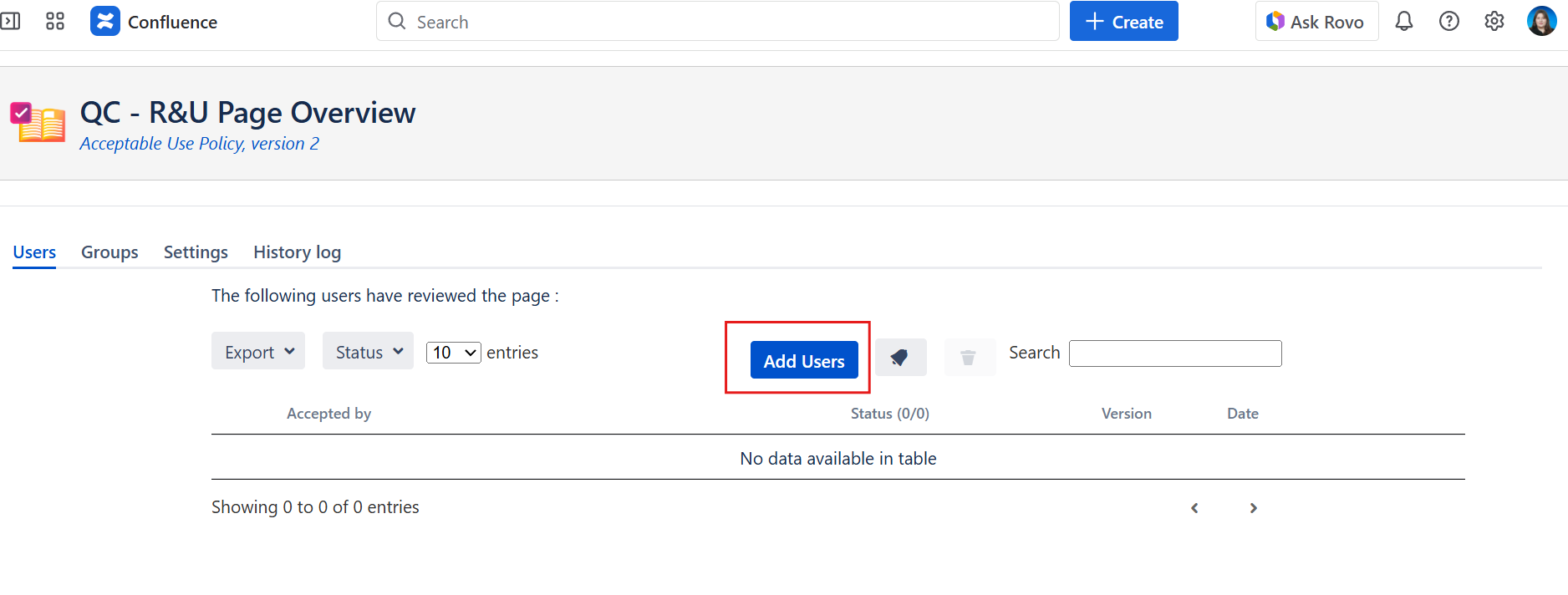
In the “Users” tab, click “Add Users”
-
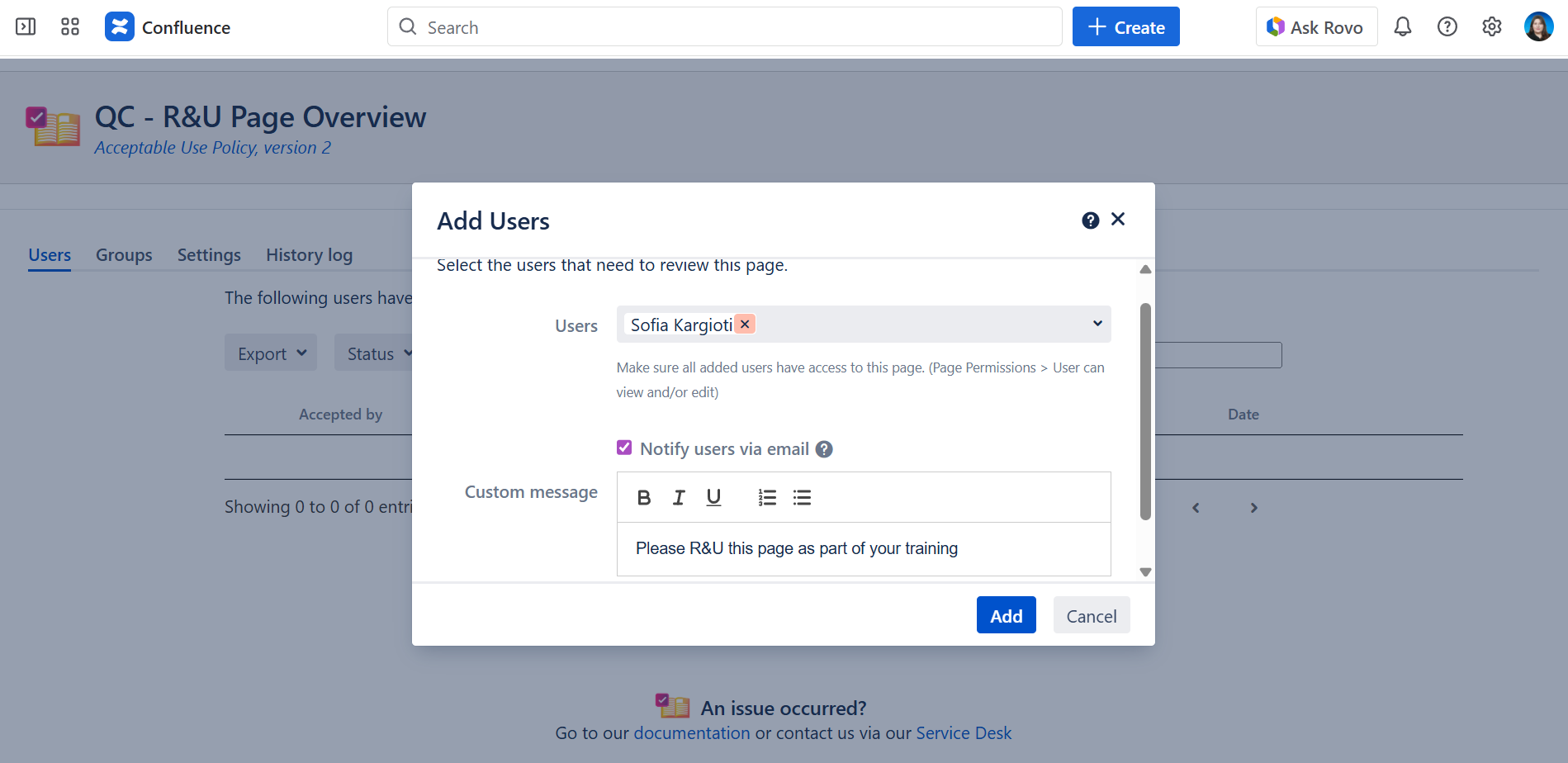
Start typing the user name and select the user once they appear on screen
-
Optionally, you can notify the selected user(s) by checking the box “Notify users via email” and writing them a custom message to let them know why they need to R&U the page
-
Click Add
Assigning user groups to QC R&U Page Overview
To assign user groups to the pages they need to R&U, follow the steps below:
-
Select the Confluence page you want and click “More actions” (three dots in the upper-right corner)
-
From the “Apps” menu, select the “QC R&U Page Overview” option
-
Go to the 'Groups” tab, click “Add Groups”
-
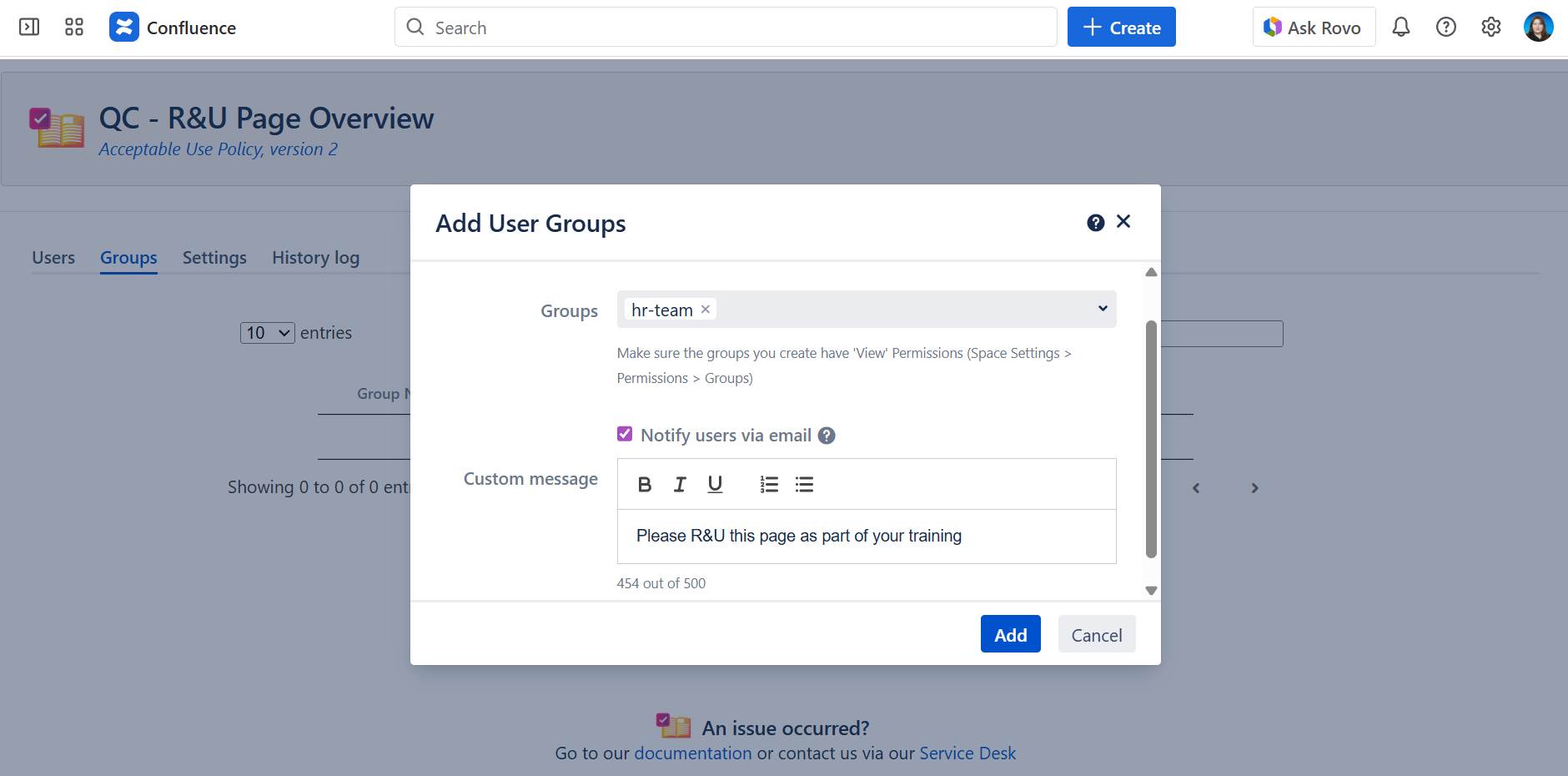
Start typing the name of the group and select it once it appears on screen
-
Optionally, you can notify the members of the selected group(s) by checking the box “Notify users via email” and writing them a custom message to let them know why they need to R&U the page
-
Click Add
If you want to assign a user group within the QC R&U Page Overview but can’t see the ones you have created, then you need to grant permissions to those groups. To do so:
-
Go to Space Settings and from the “Space access” menu select the “Groups” option
-
Click “Edit” and search for the group you want
-
Select the group and grant it “View” permissions
-
Click “Save”
-
Now that you have granted the group access to the space, go to “App links” in Space settings and select the “QC Read & Understood” option
-
Navigate to the “Settings” tab and scroll to the “Synchronization” section
-
Click the “Sync” button in order for the QC Read & Understood app to synchronize the users and display the newly added group to the app’s interface.
For more information on how to create user groups, see here https://support.atlassian.com/user-management/docs/create-groups/.
Removing users from the QC R&U Page Overview
To remove users from the QC R&U Page Overview table, just select their name and hit the “Delete Users” button.
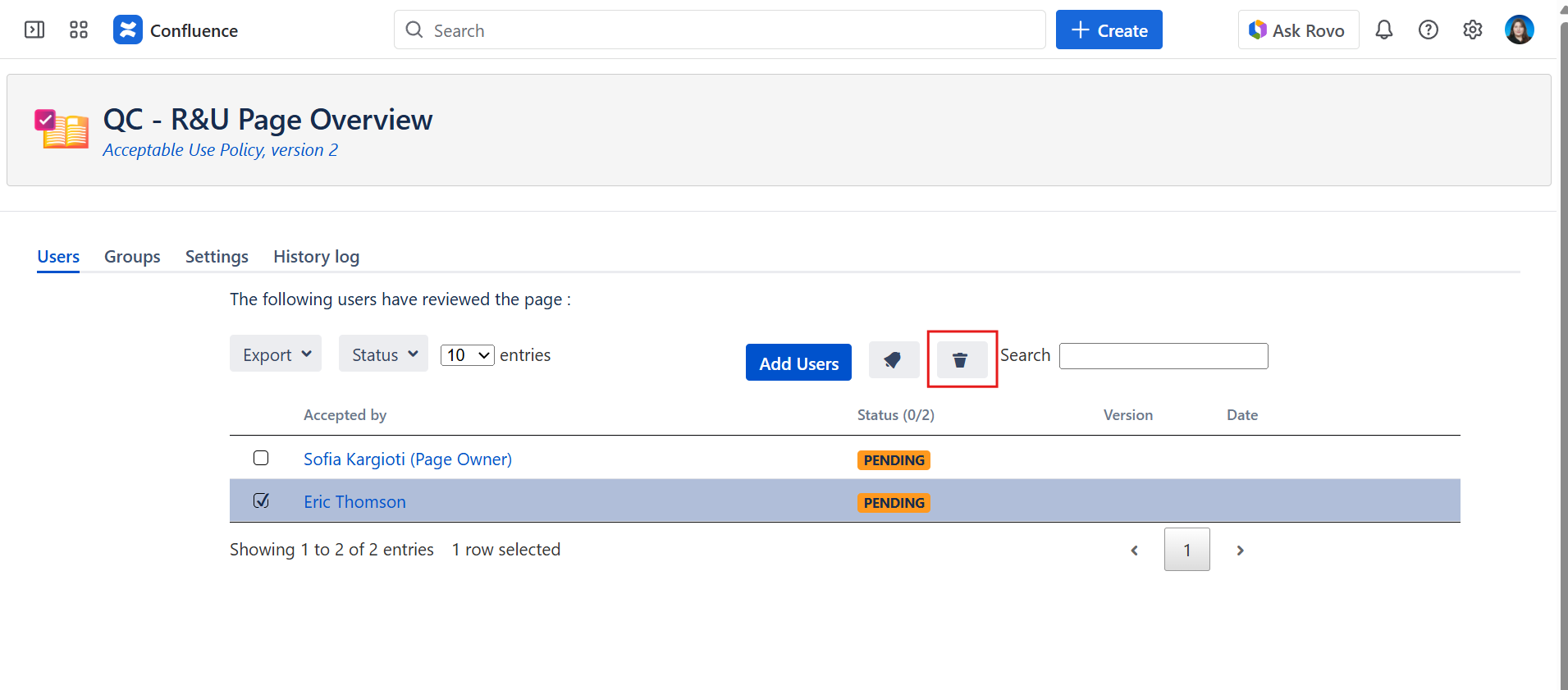
You do not have to be an admin user to add or remove people from the QC R&U Page Overview; you SHOULD, however, have View permissions, AND the QC Read & Understood app should have View and Edit permissions.