Site Level Configuration
As a site admin, you are responsible for configuring some basic settings for the QC Read & Understood app. To access the QC R&U Site Admin menu:
-
Click on “Confluence administration” (gear icon at the top right corner)
-
Navigate to the “Settings” section in the left sidebar
-
Open the “Configuration” menu and click “QC R&U Site Admin”.
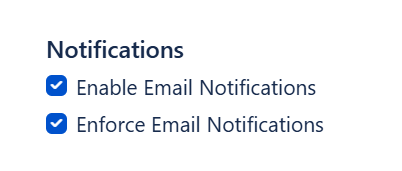
Email Notifications
The QC Read & Understood can send email notifications to users about their pending R&Us. As a site admin, you can enable the notifications and ensure that all assigned users receive them, even if they’ve disabled them on their profile settings.
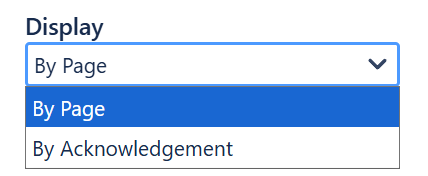
Display
Choose the QC R&U My Overview page’s display option. By default, the QC R&U My Overview will show the user’s assigned individual pages, however, if you’re using the QC Acknowledgements feature to assign users to R&U their pages, you can change it to show the Acknowledgements this user is assigned to.
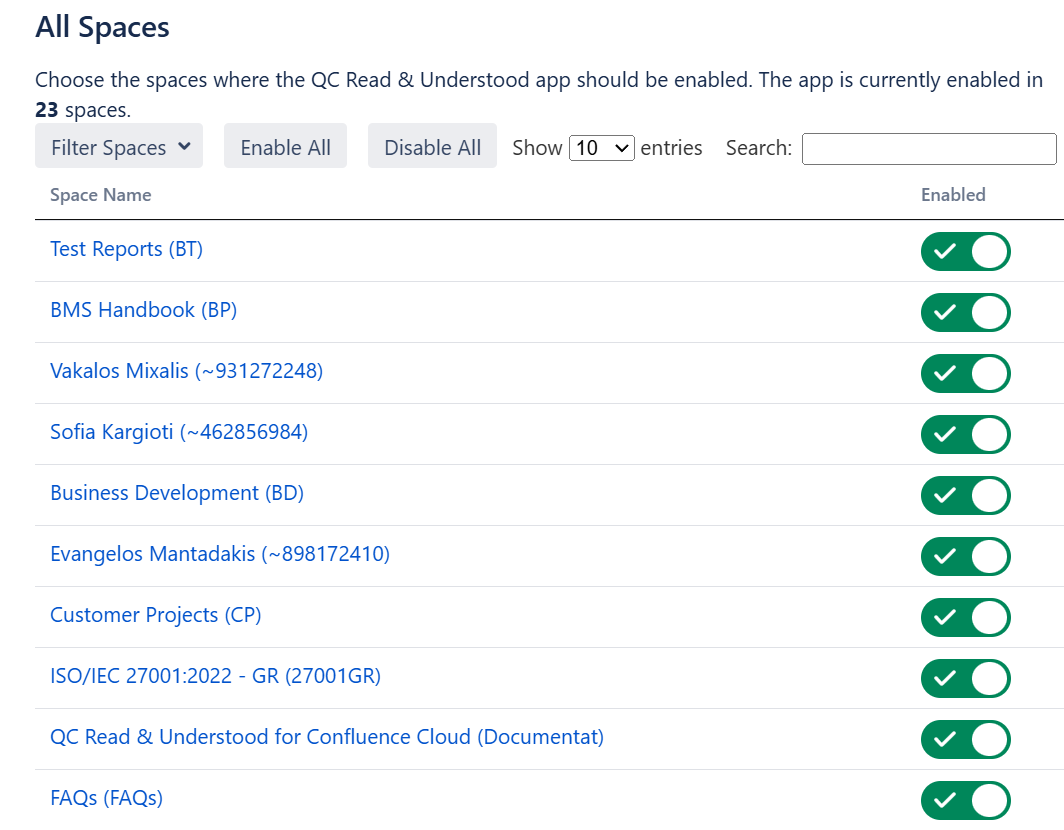
Spaces
Manage in which spaces you want the app to be enabled and disable it on spaces you’re not using.
Space Level Configuration
To access the QC Read & Understood space settings, follow these steps:
-
Click on the three dots next to the space name and select “Space settings”
-
From the left sidebar, open the “App links” menu and select the “QC Read & Understood” option
-
Navigate to the “Settings” tab
At space level, you are able to:
-
Enable/disable the app without having to be a site admin to do it (only space admins can access the QC R&U space settings)

-
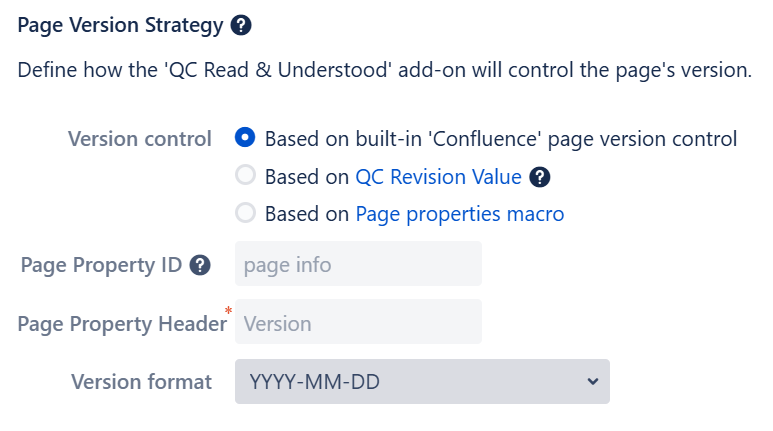
Choose your Page Version Strategy. The app offers the following page versions:
-
based on the built-in Confluence page version control, or
-
based on the page property macro
-
based on QC Revision Value
-
-
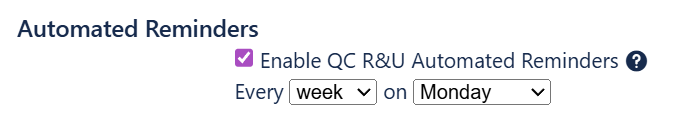
Set up automated reminders for pending R&Us
-
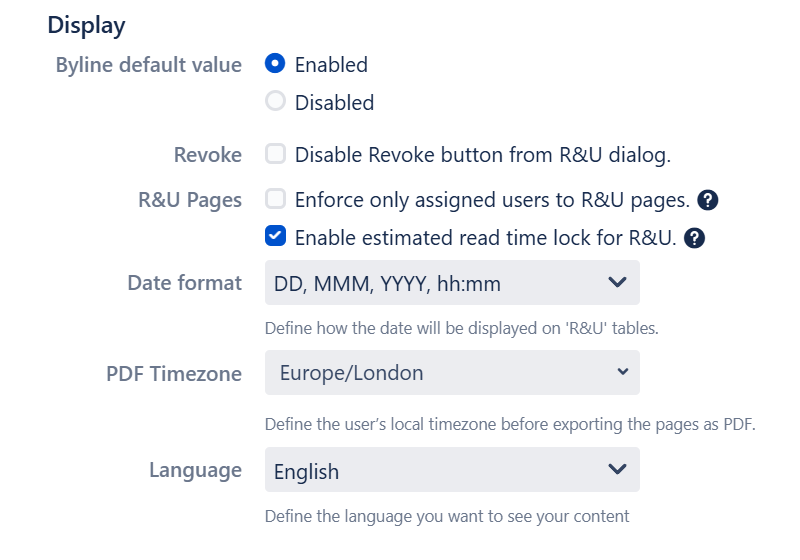
Configure basic settings:
-
Enable/disable the byline dialog
-
Enable/disable the Revoke button
-
Enforce only assigned users to R&U pages
-
Enable the estimated time lock to prevent users from R&U the page before the read time has passed
-
Configure settings like the date format, the exported PDF timezone and the language.
-
-
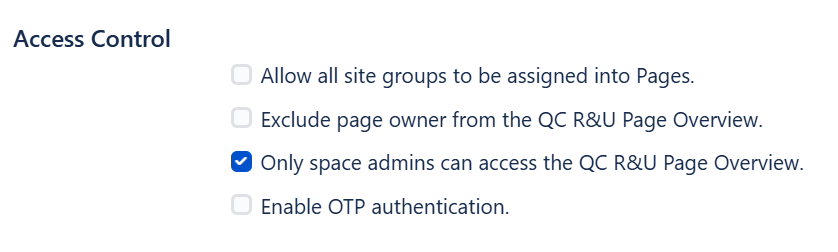
Define access control settings:
-
Decide if you want all site groups to be able to be assigned to pages,
-
Exclude the page owner from being assigned to the QC R&U Page Overview
-
Restrict access to the QC R&U Page Overview to admins only
-
Enable OTP authentication
-
-
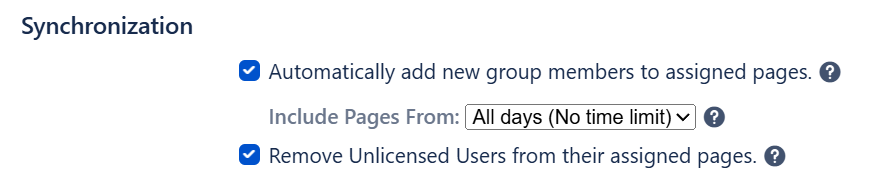
Set up the automated synchronization of users:
-
Select to automatically add new group members to their assigned pages
-
Select to remove unlicensed users from their pages.
-
Page Level Configuration
Choose to enable/disable QC Read and Understood in a specific Page, by following the steps:
-
Click on the Page menu → QC R&U Page Overview
-
Navigate to Settings tab