
How to Set a Page Inclusion Period
-
Go to Space settings → App links → QC Read & Understood → Settings.
-
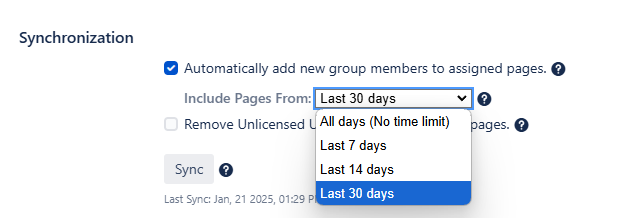
Scroll to the bottom of the page and locate the “Synchronization” section.
-
Enable Automatic User Sync by checking the box for “Automatically add new group members to assigned pages.”
-
In the “Include Pages From:” dropdown, select one of the following options:
-
All days (no time limit) – New users will be added to all pages, regardless of when they were created.
-
Last 7 days – New users will be added only to pages created in the last 7 days.
-
Last 14 days – New users will be added only to pages created in the last 14 days.
-
Last 30 days – New users will be added only to pages created in the last 30 days.
-
-
Click Update to apply and save the changes.
How It Works
-
Automated Synchronization: Every 24 hours, the system will sync and add new users only to pages within the selected time frame.
-
Manual Synchronization: You can also trigger a manual sync by clicking the “Sync” button in Space Settings or Page Overview.
-
Adding Groups to Older Pages: If you manually add a group to a page that was created before the selected time period (QC R&U Page Overview → Groups → Add Group), all users will still be added to that page.