Get to know the QC Read & Understood macros, report pages, and interesting features.
Macros
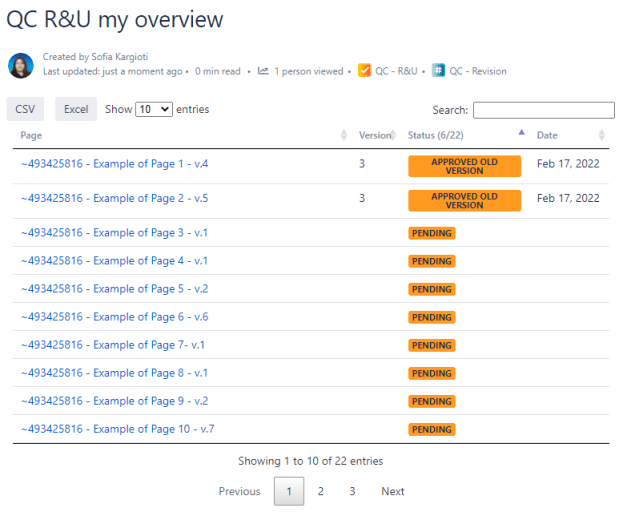
QC R&U my overview table
The QC R&U my overview table macro displays a table with all the pages the current user has reviewed within each space. The table contains the page title, the version of the page, the review status, and the date of the review.
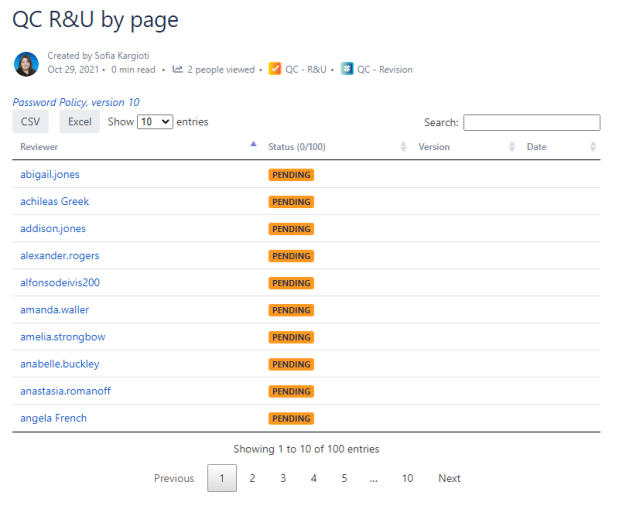
QC R&U by page
The QC R&U by page macro displays a table with all the users who reviewed a certain page. The table contains the reviewer’s name, review status, last reviewed version, and reviewed date.
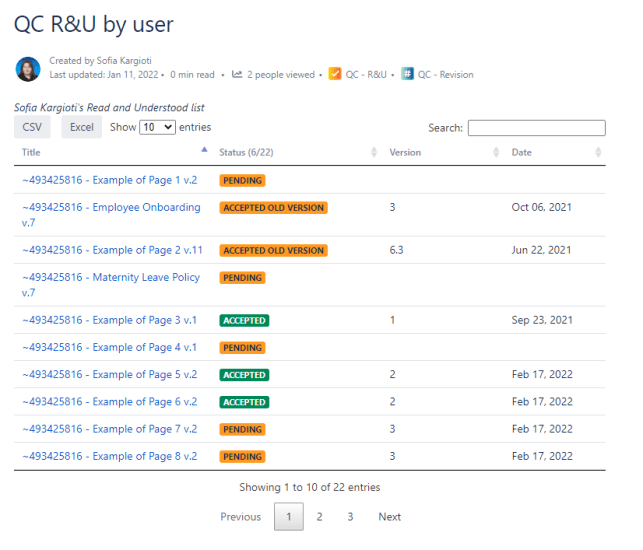
QC R&U by user
The QC R&U by user macro displays a table with all the pages a certain user has reviewed. The table contains the page title, the review status, the last reviewed version, and the reviewed date.
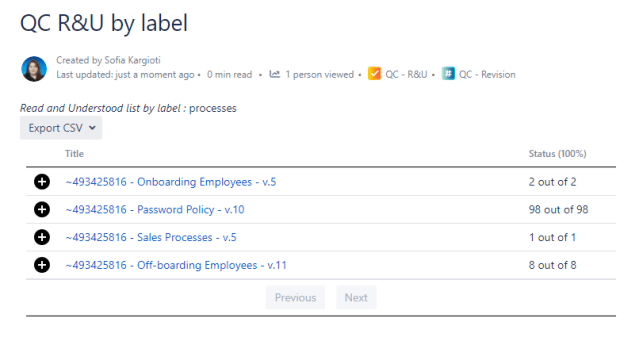
QC R&U by label
The QC R&U by label macro displays a table with all the pages containing a specific label. The table contains the page title, the review status, the reviewer’s name (reviewed by), the last reviewed version, and the date of the review.
QC R&U Groups Overview (formerly User Groups)
The QC R&U Groups Overview (formerly User Groups) macro displays a table with all the pages reviewed by one or more specific user groups. The table contains the page title, review status, the reviewers’ names (users), the latest reviewed version, and the reviewed date.
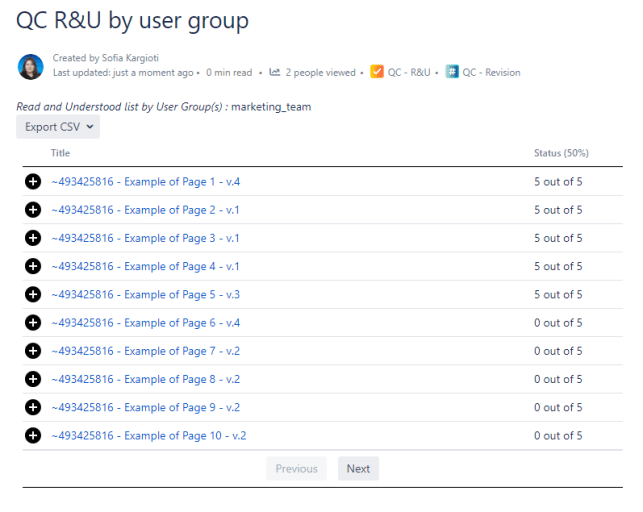
The QC R&U Groups Overview (formerly User Groups) macro has two different display lists:
-
Display by Page list: displays a list of all the pages assigned to the selected group(s)
-
Display by User list: displays a list of all the members of the selected group(s) and their assigned pages.
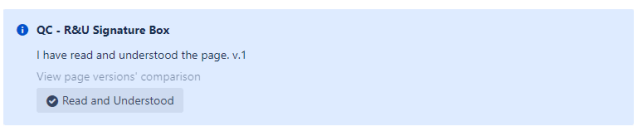
Signature Box for QC Read & Understood
The Signature Box for QC Read & Understood macro displays the “Read and Understood” button so that the user can use this macro instead of the byline to R&U a certain page.
Report Pages
QC R&U Site Overview
The QC R&U Site Overview provides the general image of pages and their assigned users within your Confluence site. The report has two different display lists:
-
Display by User list: displays how many pages from the site each user has R&U
-
Display by Page list: displays how many of the users have R&U on each page of the site.
The page should look like this:
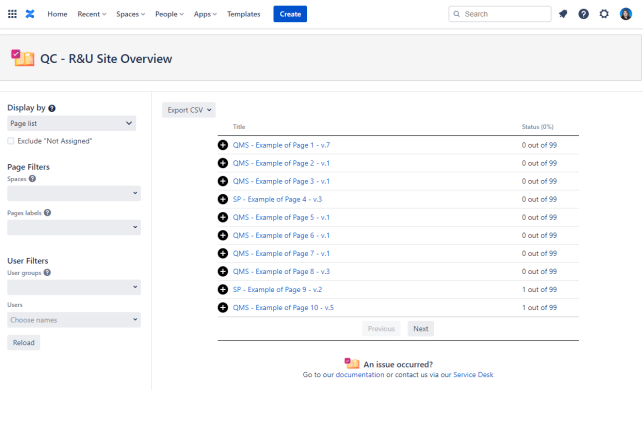
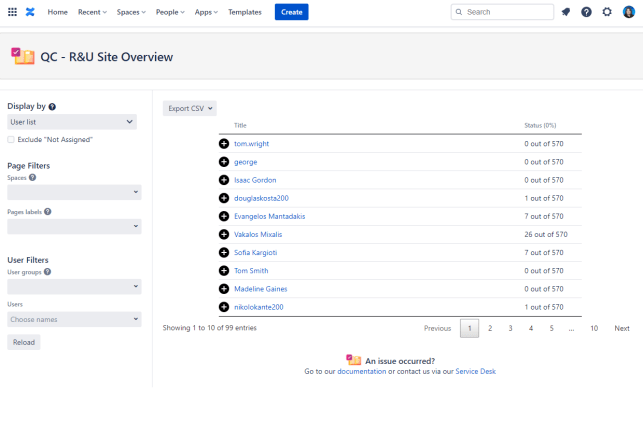
The tables in both cases contain 4 columns: the name (of the user or the page), the status (of the review), the progress, and the details.
The user has the ability to export the reports as CSV and PDF files.
This page cannot be visible to users who do not have site access, even when the space is publicly visible.
QC R&U Space Overview
The QC R&U Space Overview provides the general image of pages and their assigned users within a certain Confluence space. The report has two different display lists:
-
Display by User list: displays how many pages, from a specific space, each user has reviewed
-
Display by Page list: displays how many of the users reviewed each page, from this space.
The page you are looking should look like this:
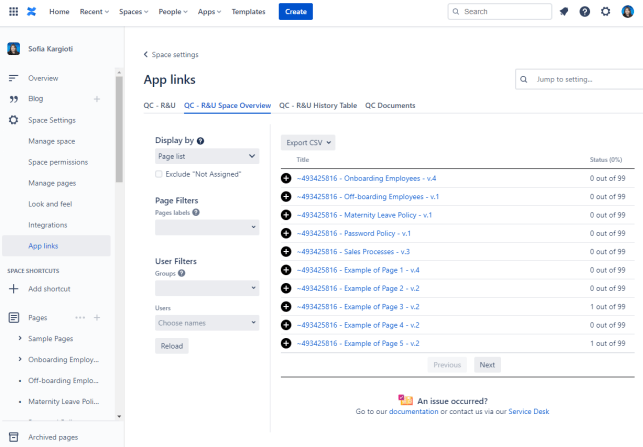
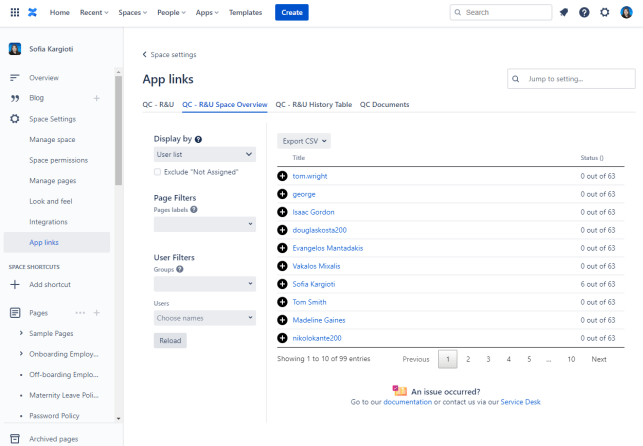
The tables in both cases contain 4 columns: the name (of the user or the page), the status (of the review), the progress, and the details.
The user can export the reports as CSV and PDF files.
This page cannot be visible to users who do not have site access, even when the space is publicly visible.
QC R&U Page Overview
The QC R&U Page Overview report shows the users who reviewed each specific page.
The Page Overview should look like this:
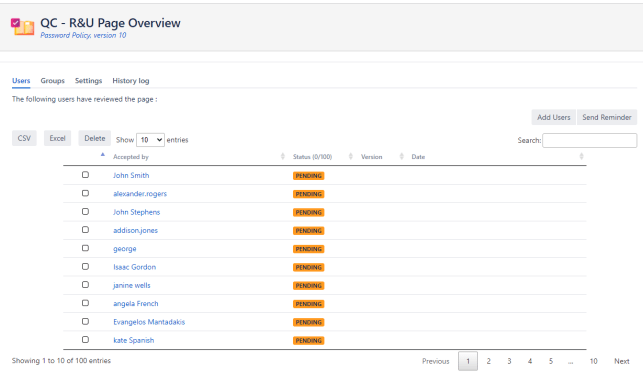
The displayed table contains the name of the reviewer, the status of the review, the last reviewed version, and the reviewed date.
The user has the ability to export the report as CSV and PDF files.
This page cannot be visible to users who do not have site access, even when the space is publicly visible.
QC R&U My Overview
The QC R&U My Overview report shows the pages that the user reviewed, as well as some stats, i.e., how many pages the user has accepted, how many older versions of pages they have accepted, the not accepted pages, and the revoked ones.
The page should look like this:
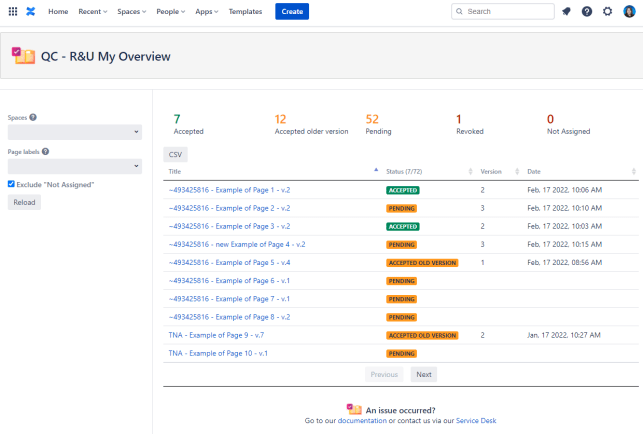
The displayed table contains the page title, the last reviewed version, the status, and the reviewed date.
The user has the ability to export the report as a CSV file.
This page cannot be visible to users who do not have site access, even when the space is publicly visible.
Speeding Up Macro Entry
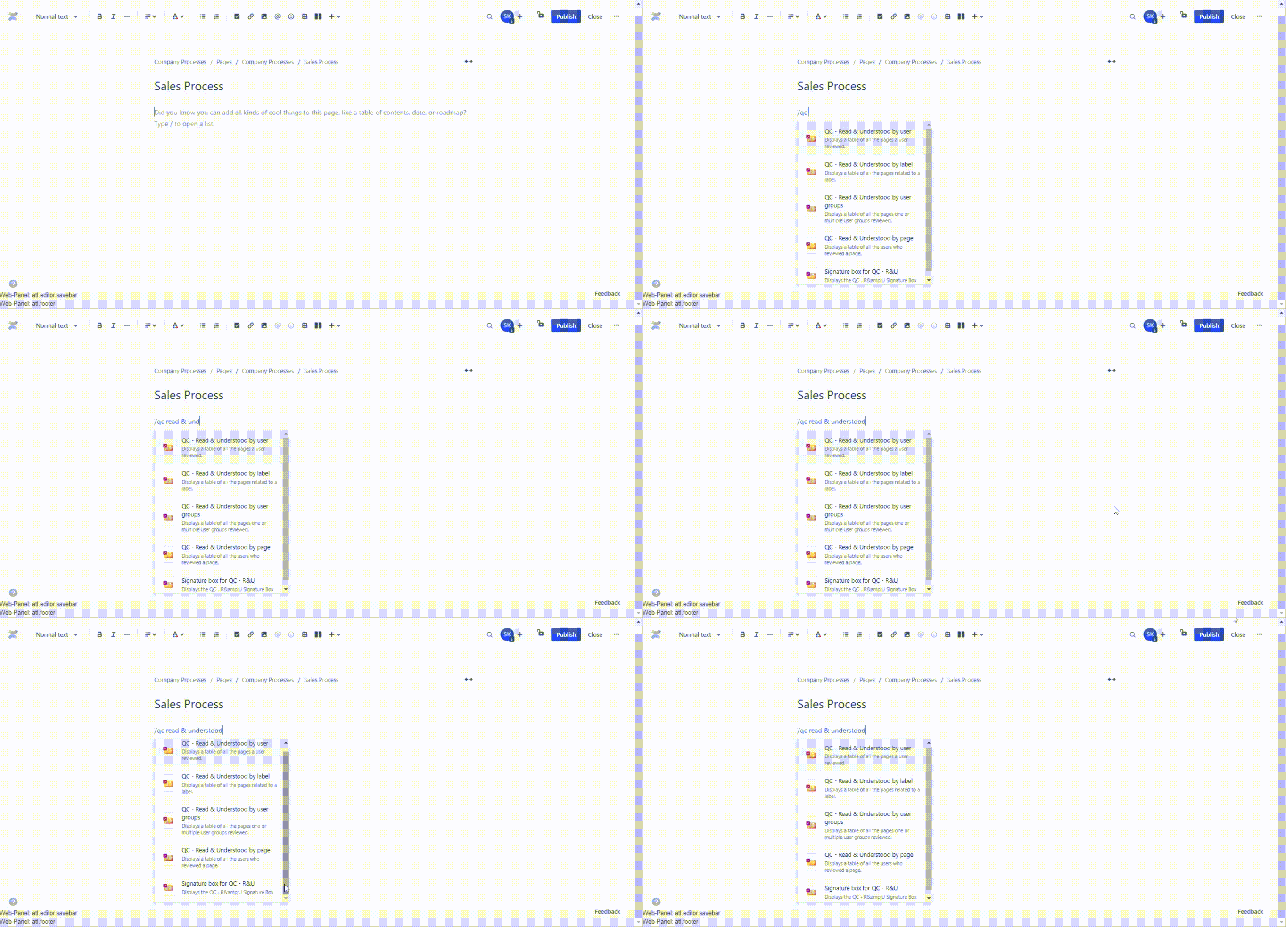
In the new editor: type / and then start typing “qc read & understood” to see a list of the QC R&U macros. Select the required macro.