
Signing a page using the Basic signature method
-
Click the “Sign” button that is displayed in the “Status” column of the QC Approvals Signatures macro.
-
Confirm your action by checking the box next to “I confirm I have reviewed the document and understand the action I am taking.”
-
Add a comment (if required) and click “Sign.”
Signing a page using the Token signature method
-
Click the “Sign” button that is displayed in the “Status” column of the QC Approvals Signatures macro.
-
Confirm your action by checking the box next to “I confirm I have reviewed the document and understand the action I am taking.”
-
In the “Token” field, type in the password you’ve set up in your personal settings.
-
Add a comment (if required) and click “Sign.”
Signing a page using the 2FA signature method
-
Click the “Sign” button that is displayed in the “Actions” column of the QC Approvals Signatures macro.
-
Confirm your action by checking the box next to “I confirm I have reviewed the document and understand the action I am taking,” and click “Sign.”
-
In the “Two-Factor Authentication Code” field, type in the OTP you see in your phone’s authenticator app.
-
Add a comment (if required) and click “Sign.”
Signing an older version
-
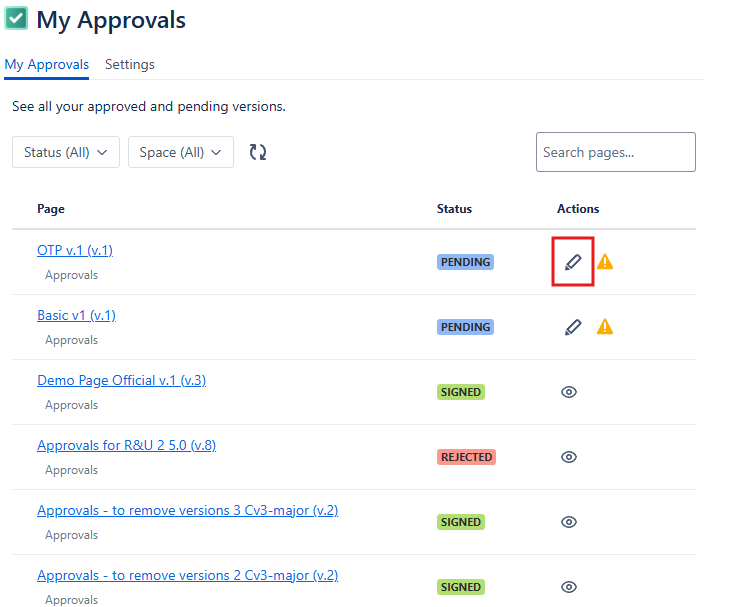
Go to Apps → My Approvals
-
Find the version of the page you want to sign. You can filter the table based on space and status to find the version quickly.
-
Click the “Sign document” button (pencil icon) in the “Actions” column
-
Depending on the signing method selected for you for that specific page, you will have to:
-
If you have to sign using the Basic signing method:
-
Confirm your action by checking the box next to “I confirm I have reviewed the document and understand the action I am taking.”
-
Provide a comment and click “Sign”.
-
-
If you have to sign using the Token signing method:
-
Confirm your action by checking the box next to “I confirm I have reviewed the document and understand the action I am taking.”
-
In the “Token” field, type in the password you’ve set up in your personal settings, provide a comment and click “Sign”.
-
-
If you have to sign using the 2FA signing method:
-
Confirm your action by checking the box next to “I confirm I have reviewed the document and understand the action I am taking.”
-
In the “Two-Factor Authentication Code” field, type in the OTP you see in your phone’s authenticator app, provide a comment and click “Sign”.
-
-